
Problem: Users of the OBDSTAR iScan Ducati and other iScan Motorcycle Scanners may encounter the error: “Unfortunately, DiagProgram has stopped.”
Proven Solutions
- Temporary Fix: Perform a factory reset. This often resolves the issue temporarily, but it may recur after some use.
- Permanent Fix: Perform a firmware upgrade (flashing). This is the recommended solution to eliminate the problem completely.
Important Note: Both methods will erase all device settings and installed software. If your software subscription has expired, you will be unable to re-download the diagnostic software afterward. It is highly recommended to renew your Update Service Subscription before proceeding.
How to Upgrade OBDSTAR iScan Series Firmware?
This firmware upgrade tutorial is applicable to the OBDSTAR Ducati Scanner and the iScan Series of diagnostic tablets.
Watch Video Tutorial:
Warning: The firmware upgrade will erase all software. Back up your DP folder if your subscription is expired.
Step1. Back Up Your Software(Crucial for Expired Subscriptions)
- Insert a TF card (16GB or larger) into the device.
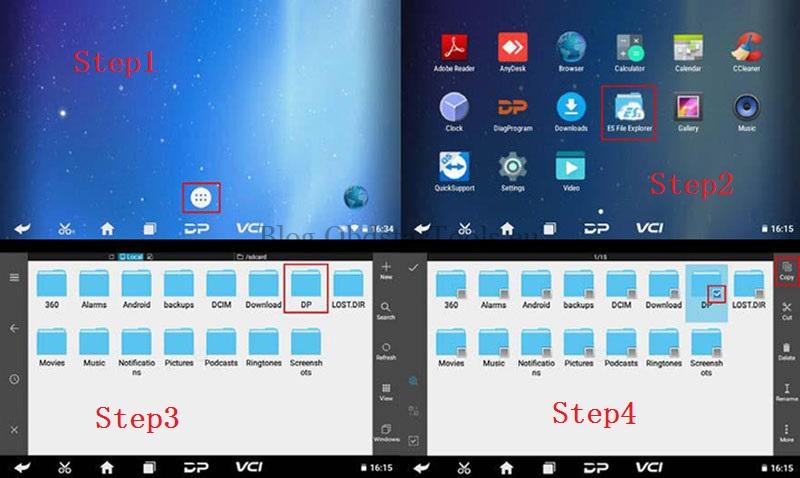
- Open the ES File Explorer app from the main menu.
- Locate and long-press the DP folder, then tap Copy.
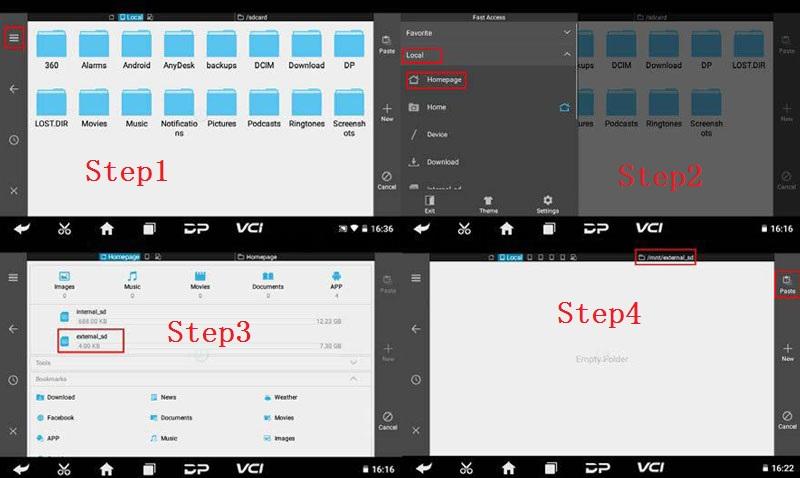
- Click the menu button, expand the local area, and select the homepage.
- Navigate to your TF card and tap After the upgrade, copy this folder back to the device.
Step2. Preparation
- Firmware File:Obtain the correct .img file (e.g., update_dp50_20211221.img).
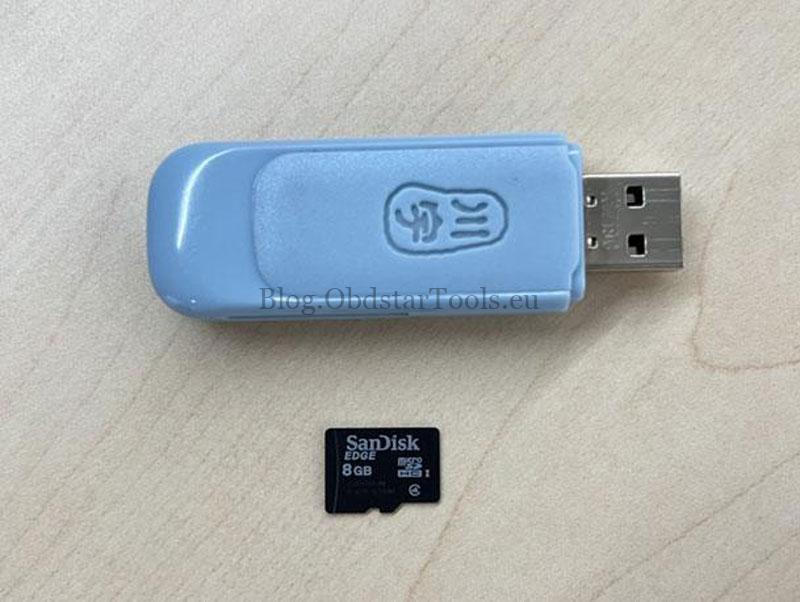
- TF Card & Reader: A TF card (1GB or larger) and a card reader.
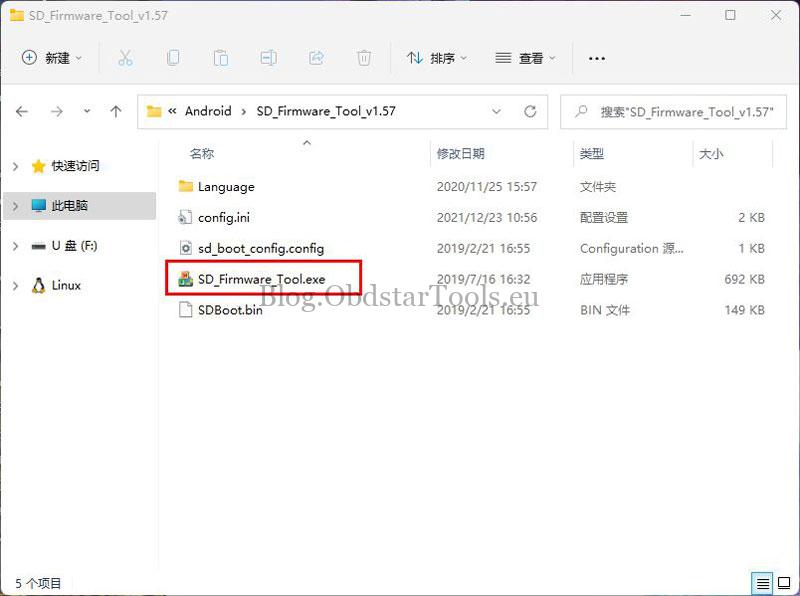
- Flasher Tool: Download the SD_Firmware_Tool software.
Step3. Create the Upgrade TF Card
- Connect the TF card to your PC via the card reader.
- Run exe.
- Follow the steps below:
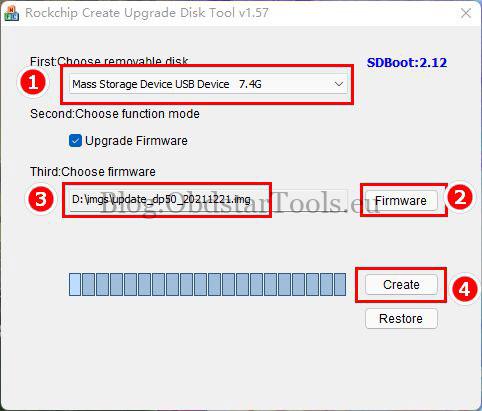
Operating instructions
- Ensure the tool detects your TF card.
- ClickFirmwareto select your “.img”
- Click the Create button.
- Wait for the”Creating upgrade disk ok” message. The upgradable TF card is made successfully.
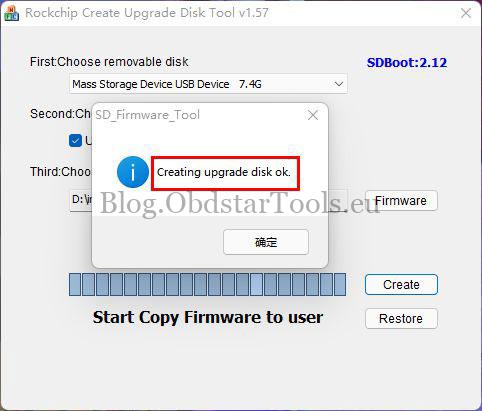
Step4. Updating The Firmware
Warning: Connect the device to a power adapter and ensure the power light is on. Do not power off during the process.
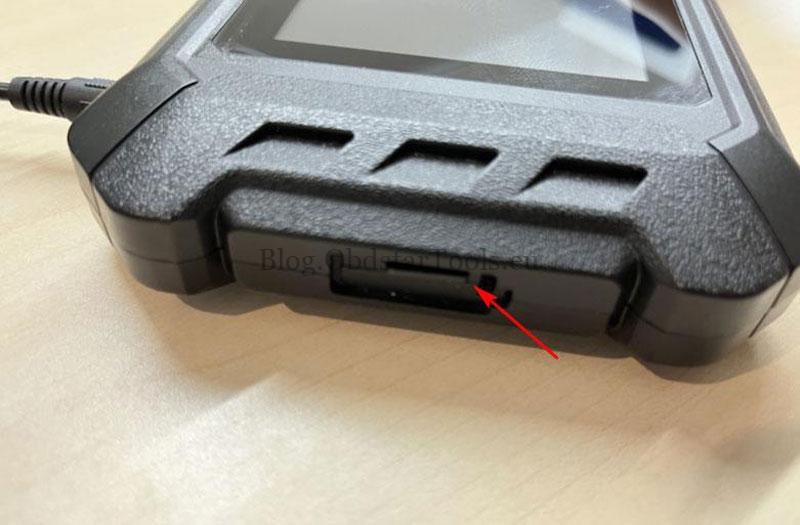
- Insert the prepared TF card into the device.
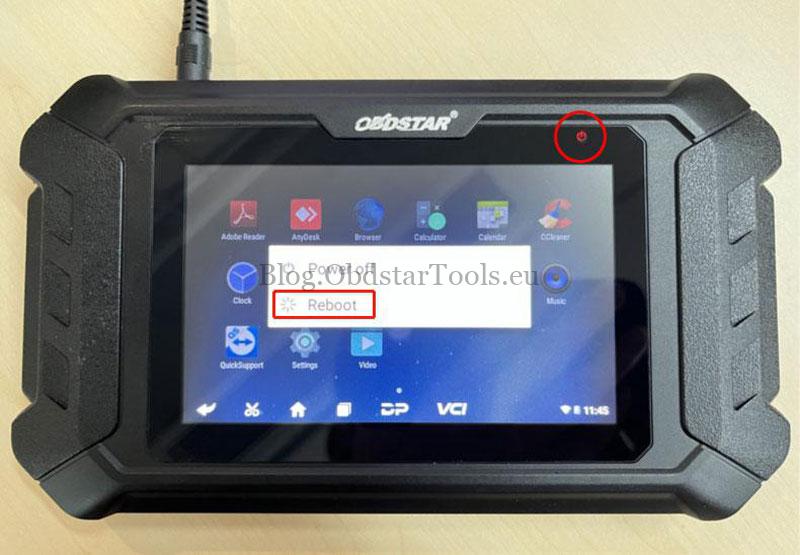
- Long-press the power button and select Restart.
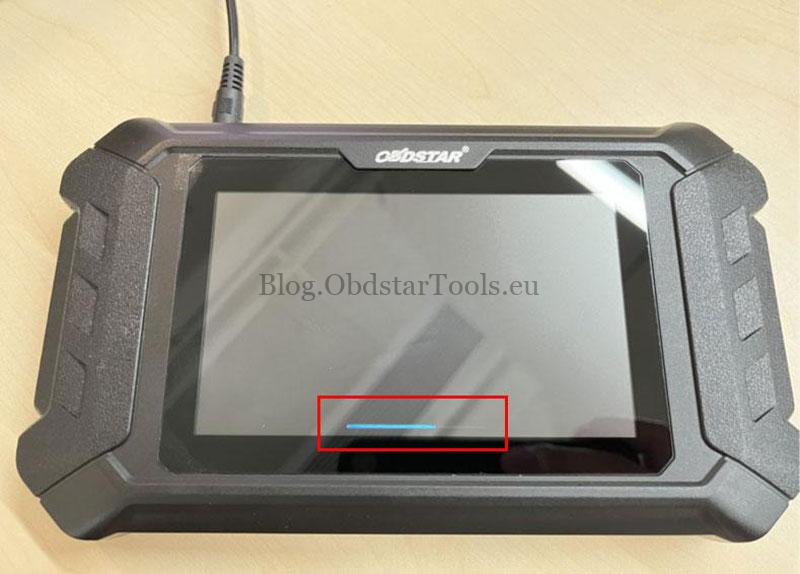
- The device will automatically start the upgrade; a progress bar will show.
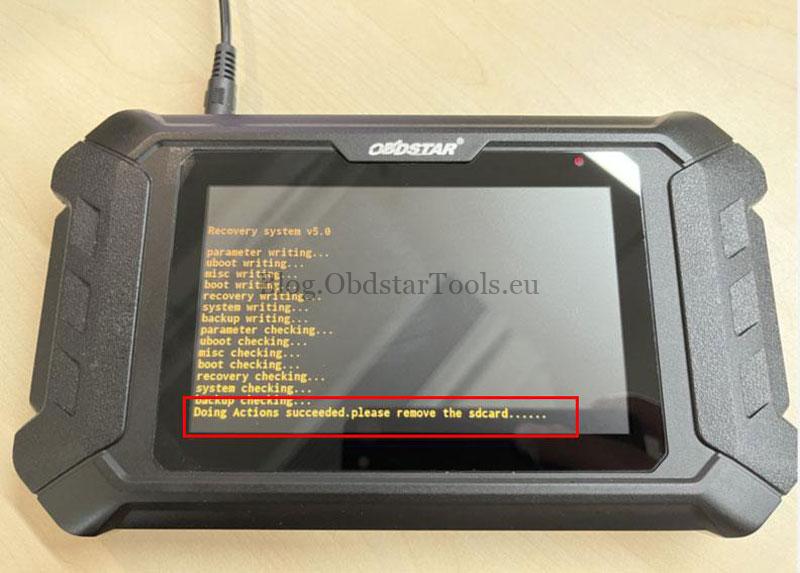
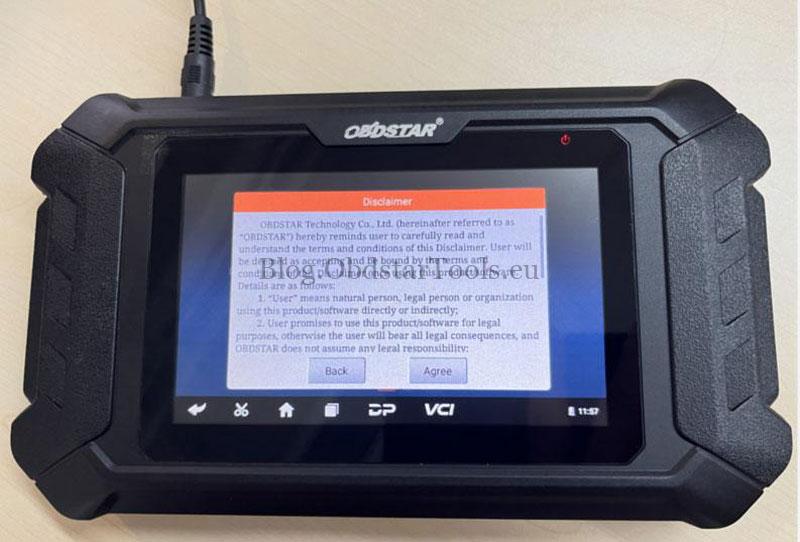
- When you see “Doing Actions successful. please remove the sdcard”, remove the TF card. The device will reboot.
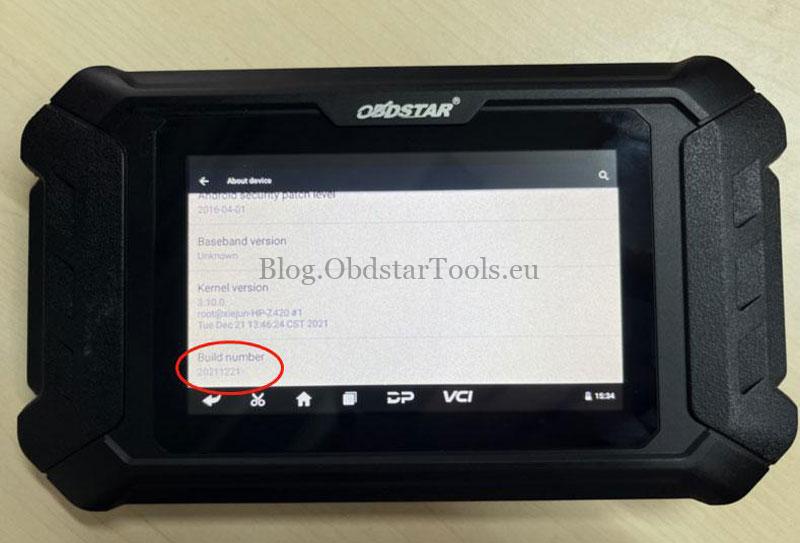
- The upgrade is complete. Verify the new version under Settings > About Device > Build Number.
Need Help?
For firmware files, update subscriptions, or technical support, contact OBDSTAR:
Email: sales@obdstartools.eu
WhatsApp/Mobile/Wechat: +86 15972933706
Skype: OBDStarTools.eu