
The OBDSTAR ECU Master PC software is a desktop-based tool used for ECU system communication and management, including connecting the ECU Master device for programming-related operations. This guide explains the basic software setup process, including how to register an account, install the PC software, perform system or VCI upgrades, and upload diagnostic logs for troubleshooting purposes.
Watch Video Tutorial
Software Download & Installation
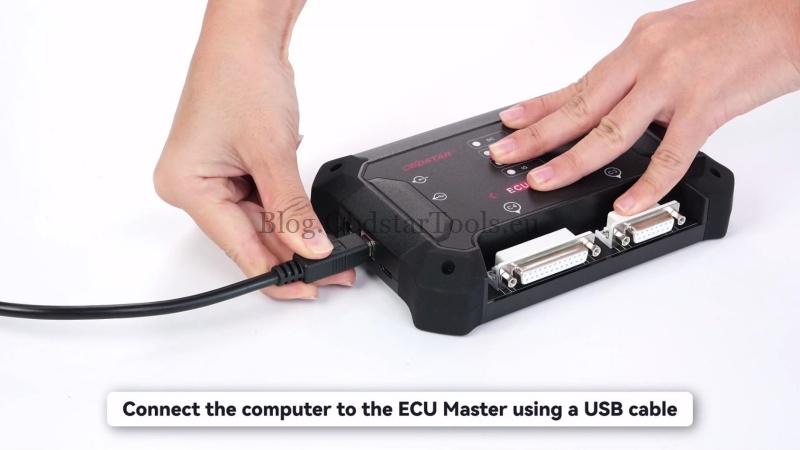
- Connect the computer to the ECU Master using a USB cable.
- Connect the power supply.
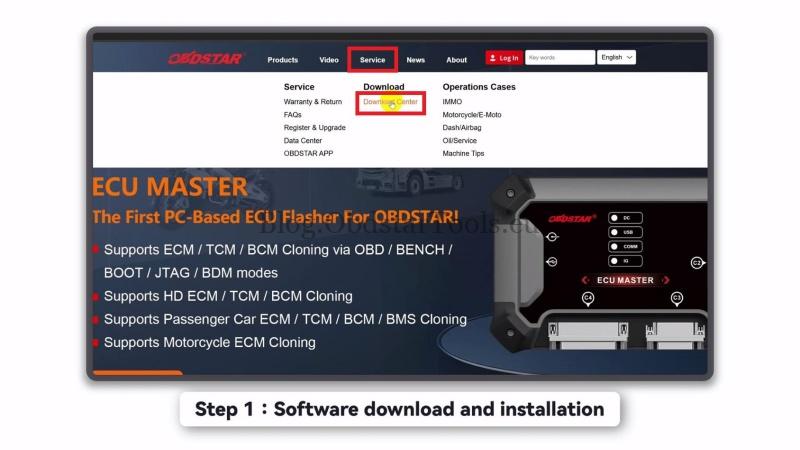
- Visit OBDSTAR Official Website.
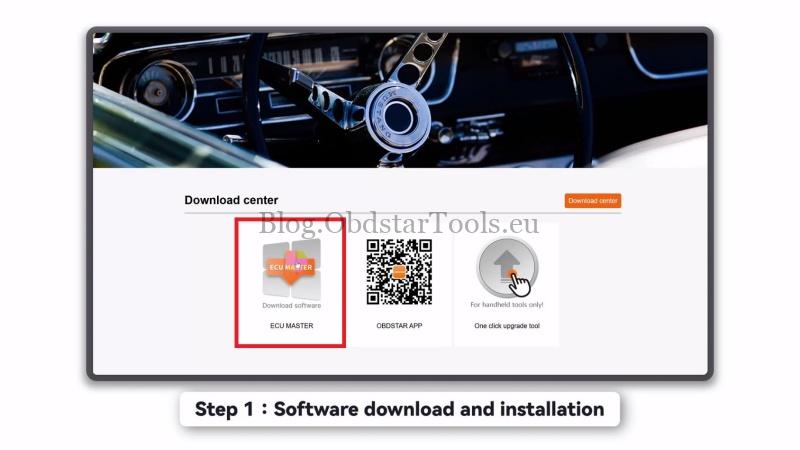
- Go to:Service → Download Center → ECU Master
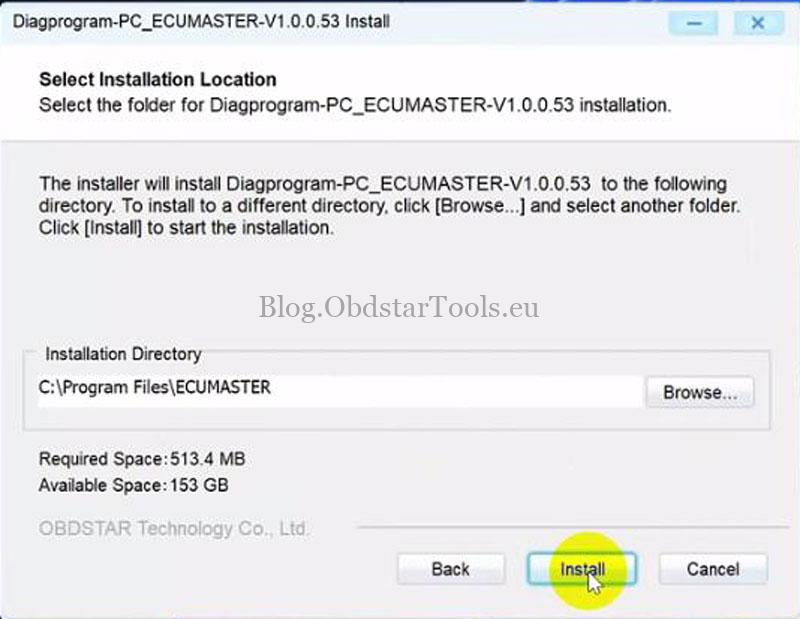
- Download and install the ECU Master PC software package.
- Run the PC software.
User Registration
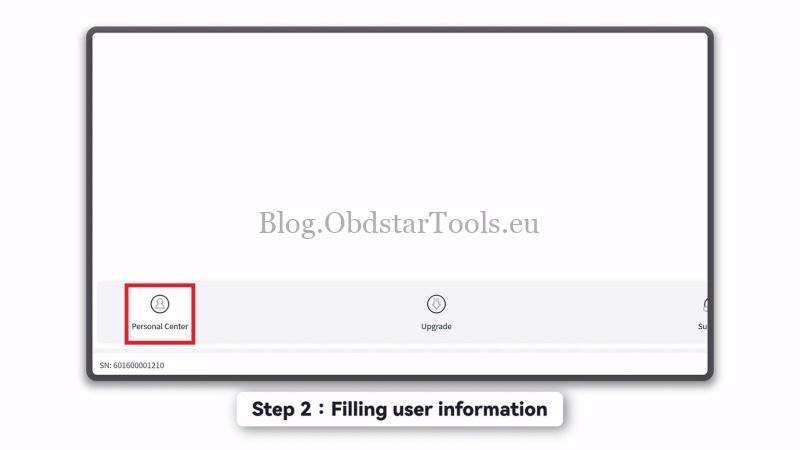
- Open the ECU Master PC software.
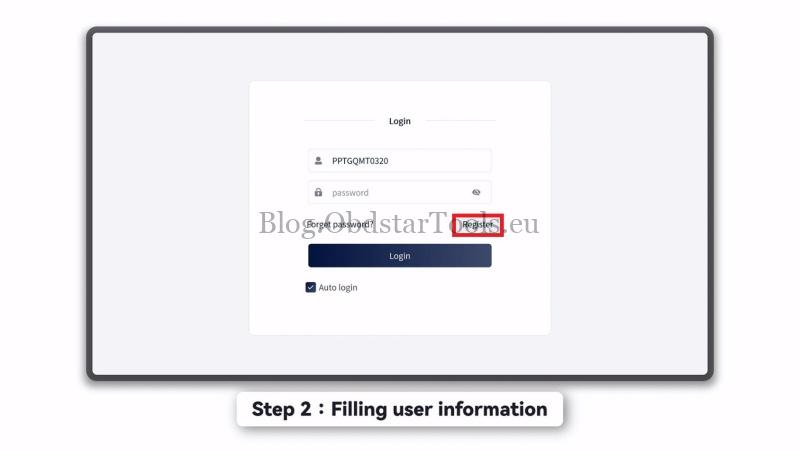
- Select Personal Center >
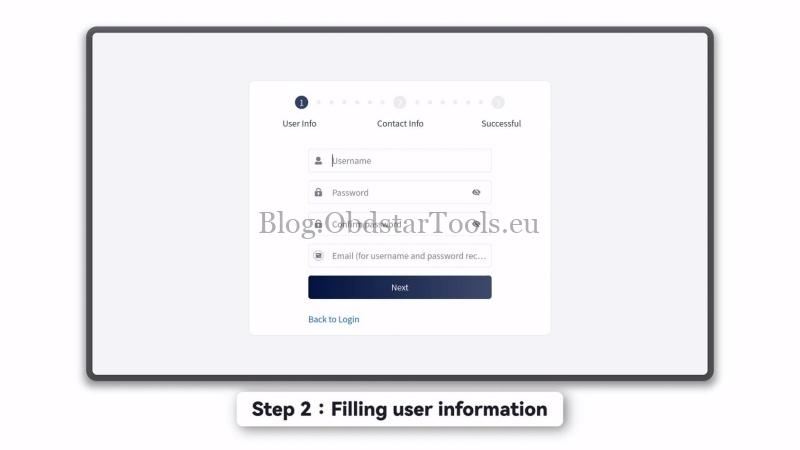
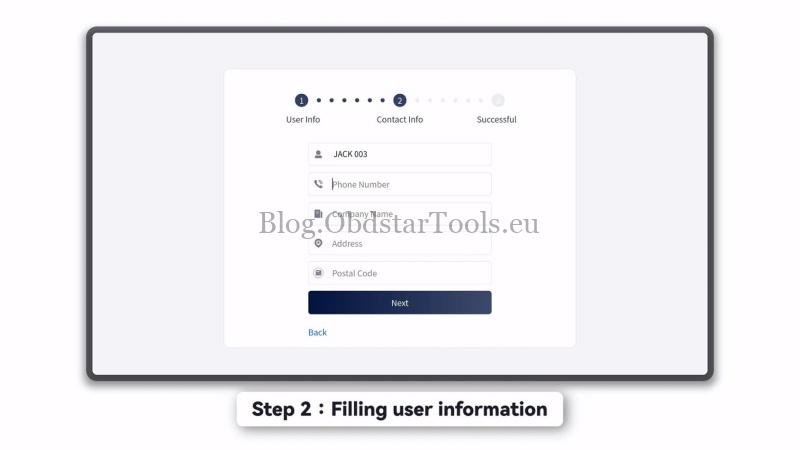
- Fill in the following information:
Username
Password
Phone number
Company name
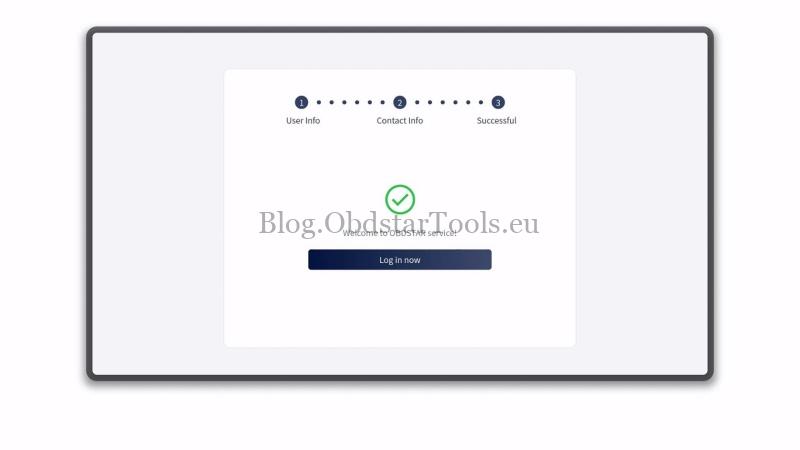
- Complete registration.
- Click Login now.
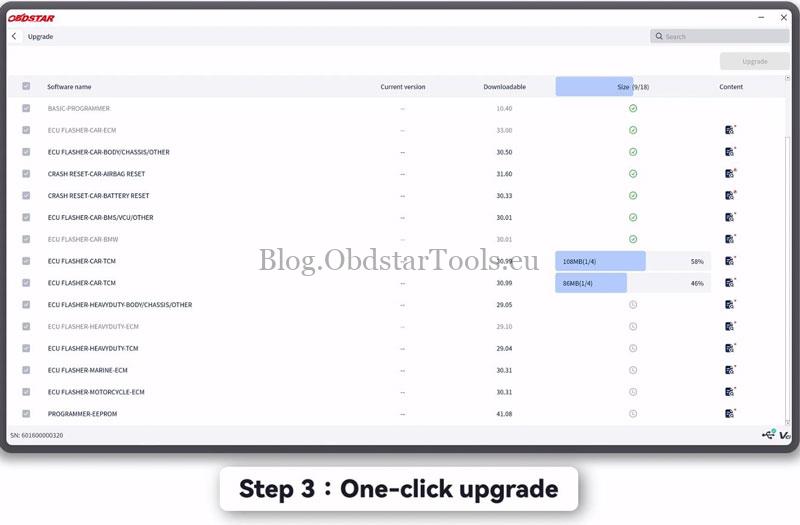
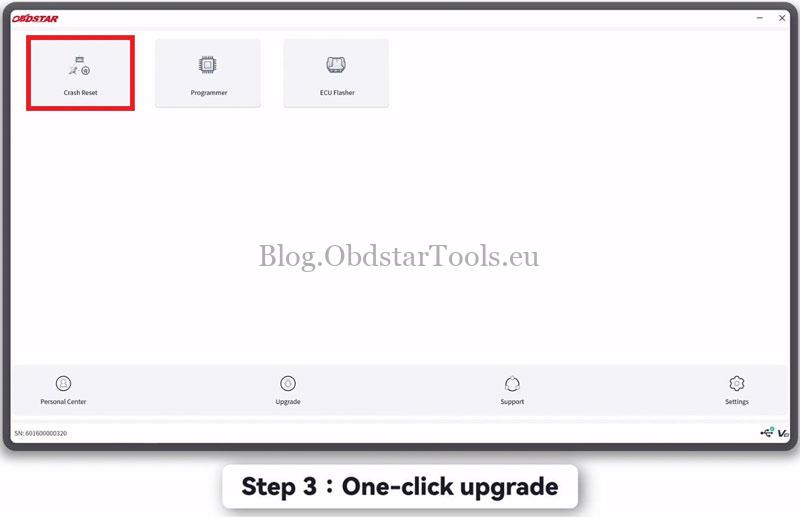
One-Click Upgrade
- Open the ECU Master
- Select Upgrade.
- Tap Upgrade again.
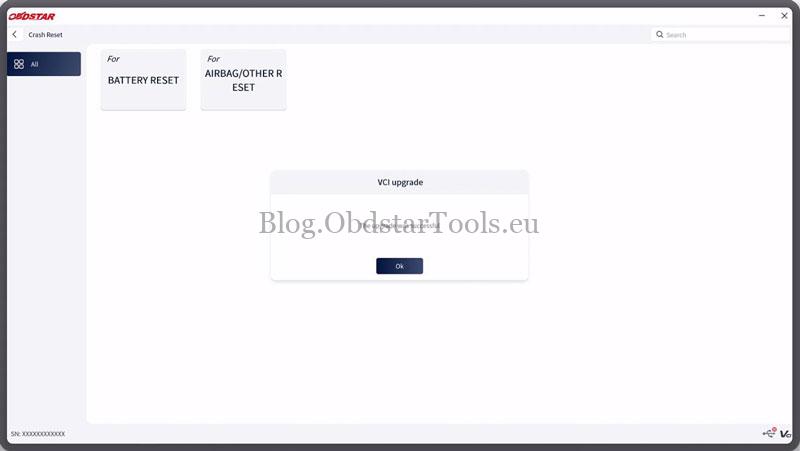
- When the system displays Crash Reset, select Accept.
- Wait until the message appears:
“VCI upgrade was successful.”
Upload Diagnostic Logs
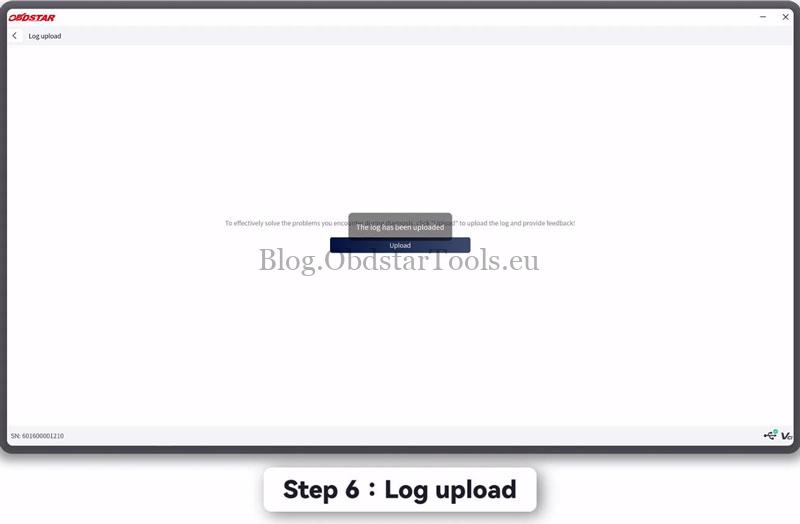
If you encounter diagnostic or upgrade issues, click Upload in the ECU Master software to upload logs and submit feedback for troubleshooting support.
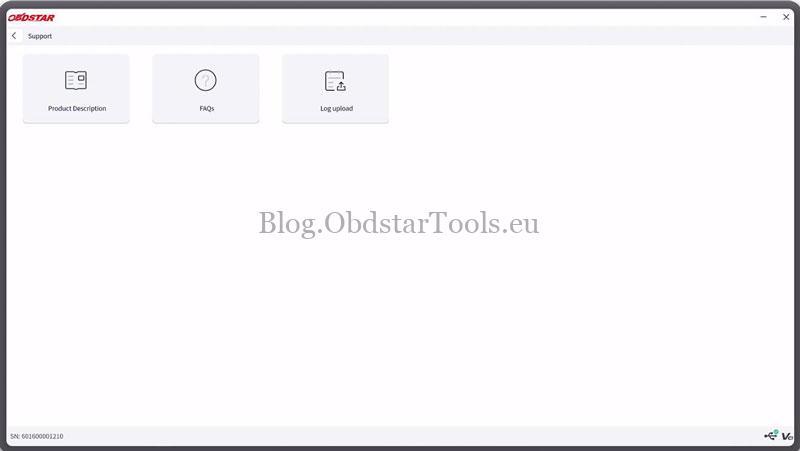
Product Description & FAQ Section
Inside the ECU Master software, you can view:
- Introduction
- Diagnostic Notes
- Upgrade Information
- Remarks
- Accessories Description
- Frequently Asked Questions
Frequently Asked Questions
- ECU Master Cannot Start
If the device cannot power on:
- Connect the included DC power supply and charge the device.
- If the device still cannot start, contact after-sales service.
- If the ambient temperature is below -20°C, move the device to a proper environment before powering on.
After startup, the device can operate normally without temperature influence.
- ECU Master Update Is Slow or Cannot Proceed
Possible causes include:
- Unstable Wi-Fi connection
- Weak network signal
- Expired software subscription
Check the Wi-Fi connection and verify whether the software subscription period is still valid.
- Unable to Perform Testing
Recommended troubleshooting procedure:
- Upgrade the software to the latest version.
- Submit feedback if the issue remains.
- Confirm the vehicle itself has no faults.
- Check whether the main cable is functioning properly.
- Replace the main cable with another cable of the same type if possible.
- If the problem is determined to be device-related, return the device and main cable for repair.
- ECU Master Cannot Charge
- Check whether the charger outputs 14V voltage.
- Replace the charger if voltage is abnormal.
- If the issue remains, contact after-sales service and return the product with the charger for repair.
- How to Upgrade ECU Master Software
Procedure:
- Open the ECUMASTER interface.
- Enter Personal Center.
- Register and log in.
- Open Upgrade.
- Select the software version.
- Tap Upgrade.
- How to Delete ECU Master Software
Navigate to the ECUMASTER installation directory, locate the software file you want to remove, and delete it manually.
- How to Change System Language
- Open Settings on the home page.
- Select Languages.
- Choose the desired system language.
Read also
OBDSTAR ECU MASTER FAQ: Cloning, Activation & Subscription Guide
OBDSTAR ECU MASTER FAQ: Cloning, Activation & Subscription Guide
Technical Support
Email: sales@obdstartools.eu
WhatsApp/Mobile/Wechat: +86 15972933706
Skype: OBDStarTools.eu