
The OBDSTAR MOTOMASTER can configure keys on 2006–2017 BRP Sea-Doo, including adding an unprogrammed original key and setting its operating mode.
Required Tools
- MOTO MASTER
- M001A Adapter
- M043 Adapter
- Unprogrammed original key
Enter the Key Configuration Function
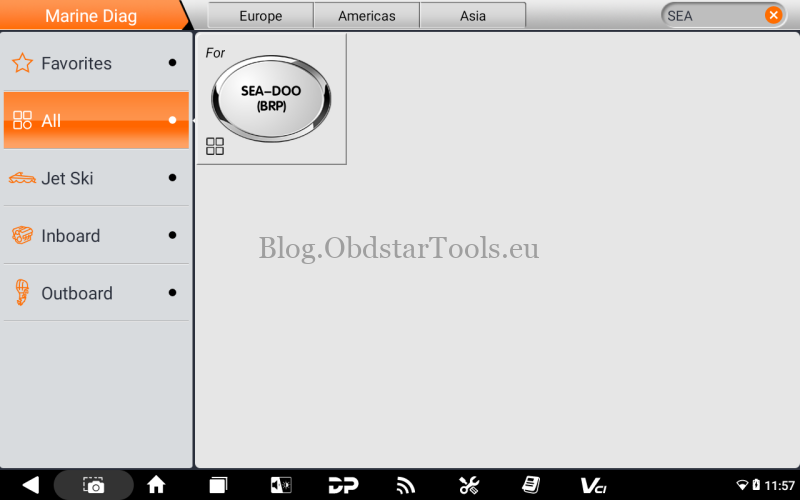
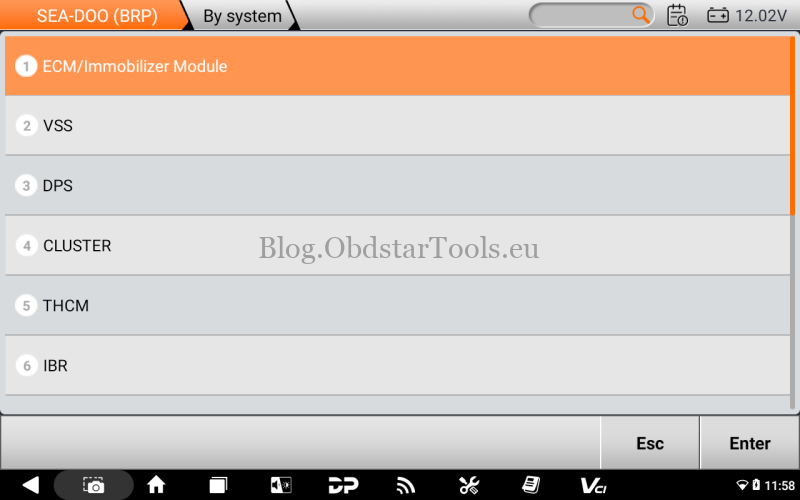
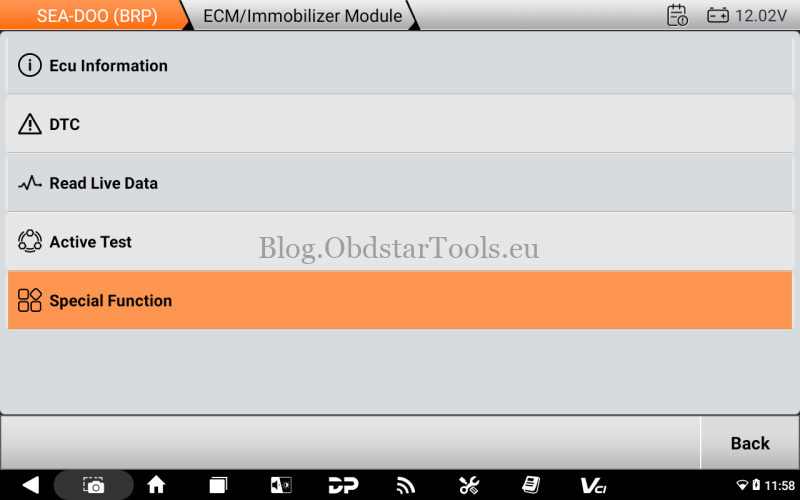
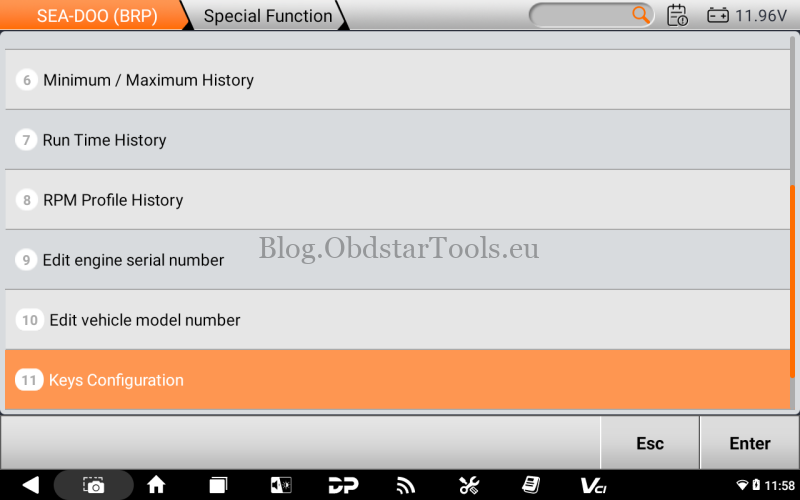
- Connect the MOTOMASTER and go to Marine Diag → SEA-DOO(BRP) → Latest Version → Version (2006–2017) → By system. Select ECM/Immobilizer Module.
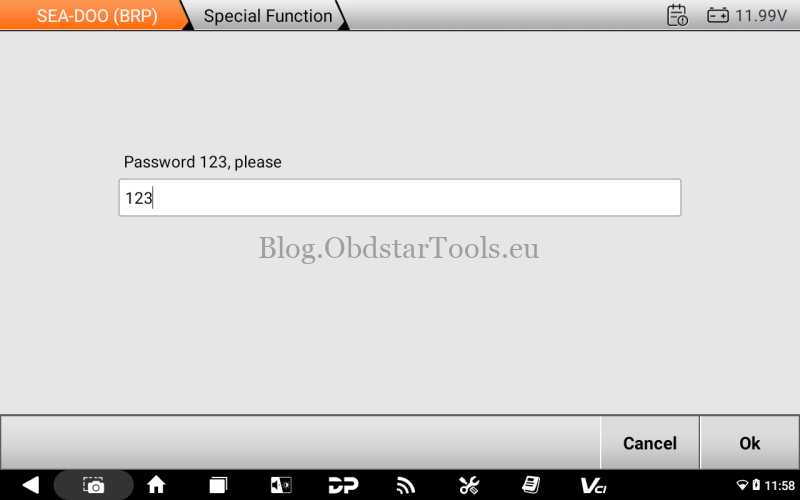
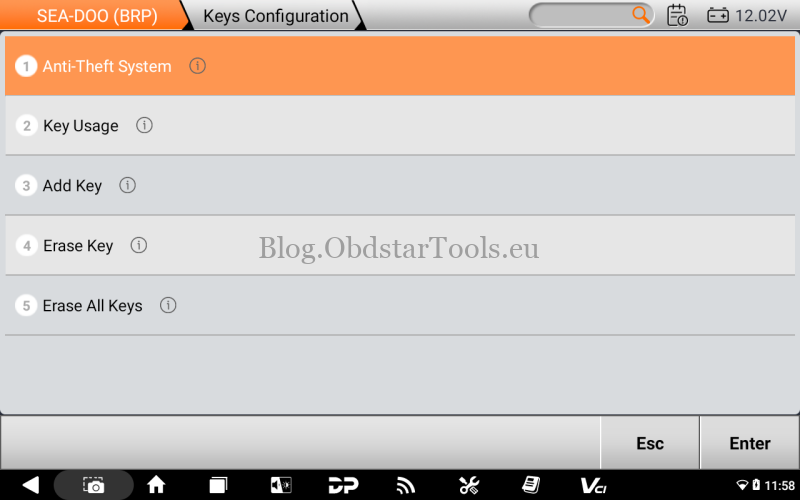
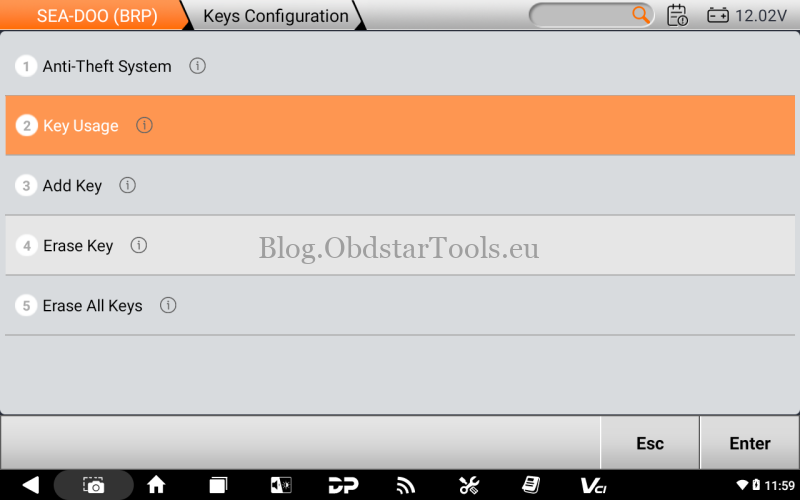
- Enter Special Function, input password 123, and click OK. Then select Key Configuration → OK → Anti-Theft System.
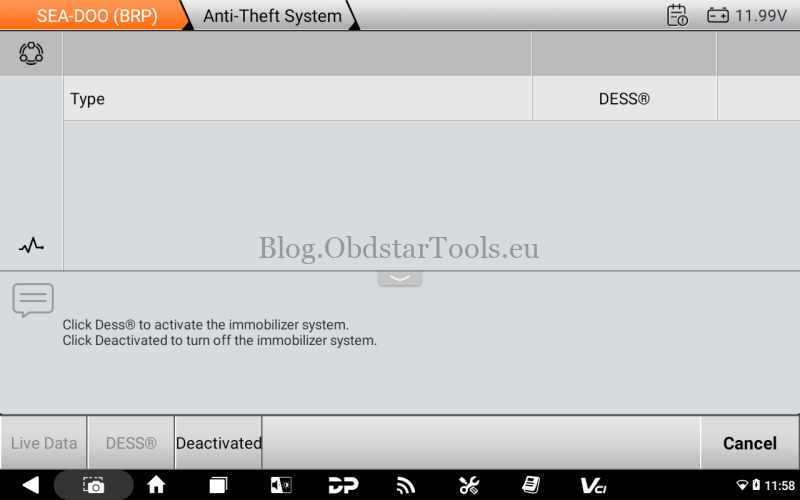
- Check the immobilizer status. If it is inactive, click DESS at the bottom to activate it, then click Cancel to return to the menu.
Add & Configure a Key
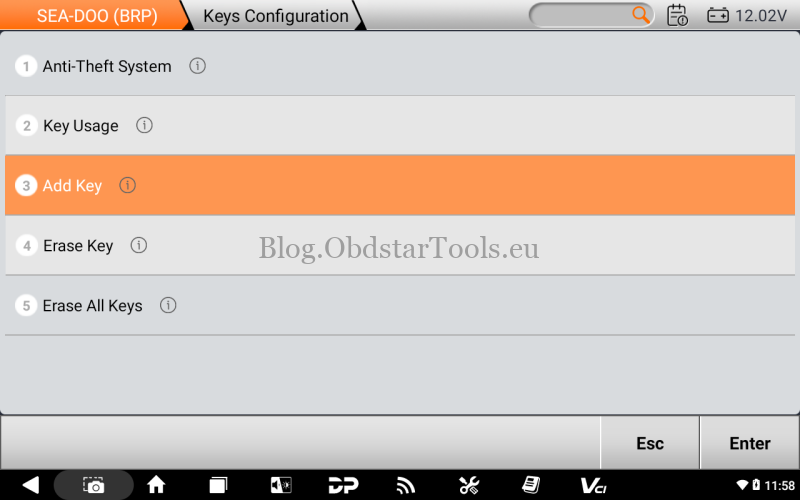
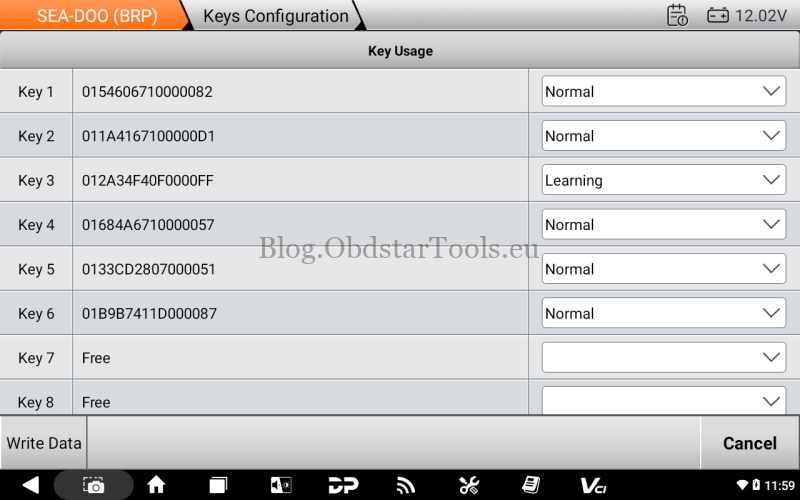
- Before selecting Add Key, it is recommended to open Key Usage from the main menu and check the number of keys currently stored. The system supports a maximum of 8 keys. If the memory is full, delete an existing key before adding another one.
2. Select Add Key, then click OK when prompted. The tool will proceed to the key configuration mode selection.
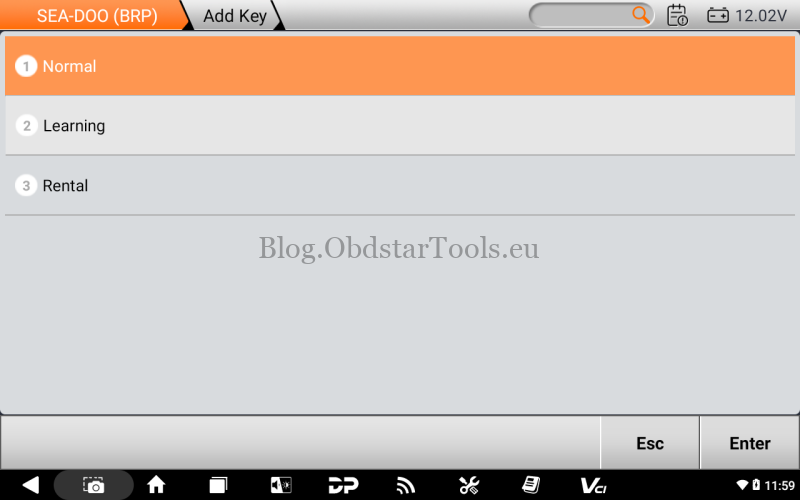
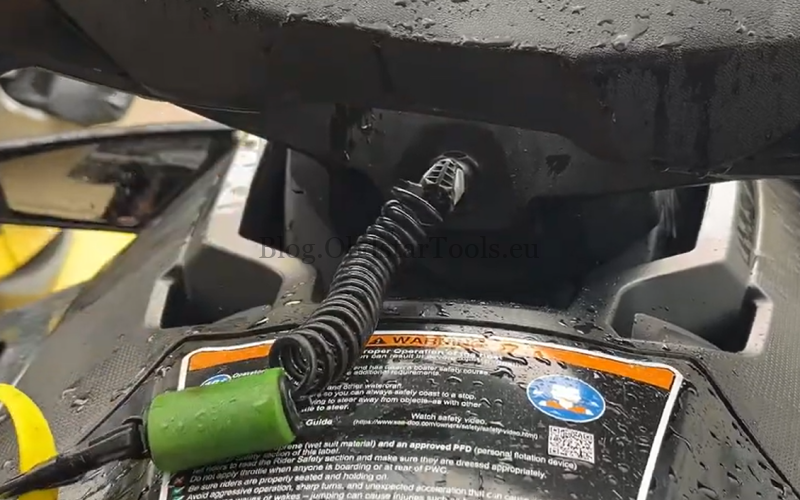
3. Select the required configuration mode and follow the device prompt to insert the new key into the ignition switch:
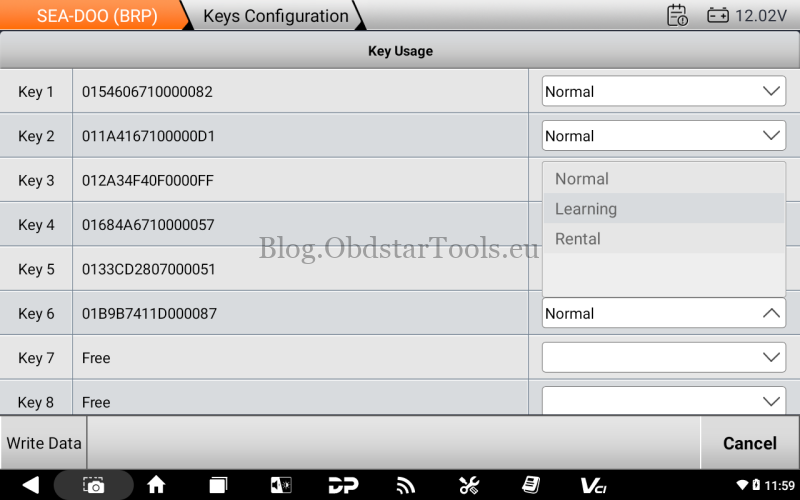
- Normal Mode: Top speed limited to approximately 70 km/h (44 mph), suitable for daily riding.
- Learning Mode: Top speed limited to approximately 40 km/h (25 mph), suitable for beginners.
- Rental Mode: Top speed limited to approximately 40 km/h (25 mph), suitable for rental use.
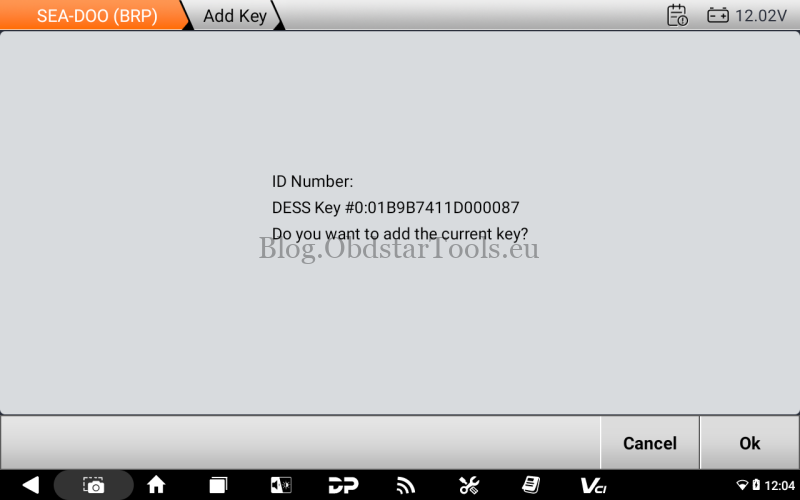
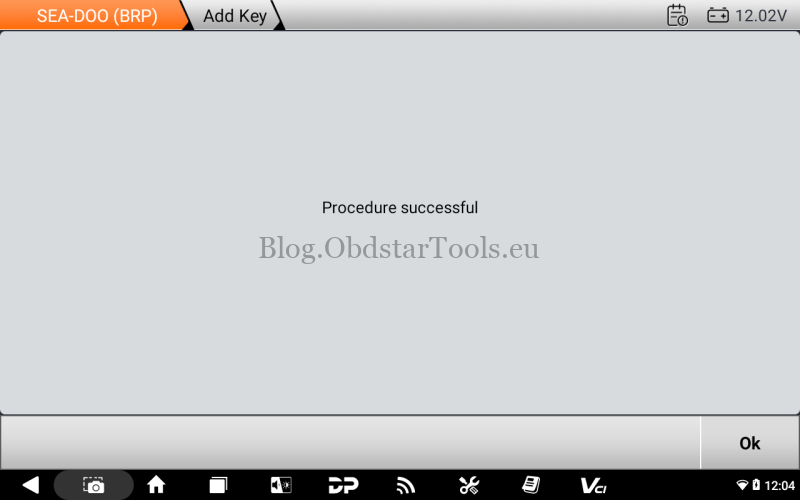
4. Check the displayed Key ID. If it is correct, click OK and wait for the tool to display Procedure Successful.
Check the Stored Key
- After programming, select Key Usage to confirm that the new key has been stored in the immobilizer system.
- Check the Key ID and assigned key position. The original example shows Key ID 01B9B7411D000087 configured as Key 6. The options on the right side of the interface can also be used to modify the key status.
Delete a Stored Key
- Insert the key to be deleted into the ignition switch.
- Under Key Configuration, select Erase Key. The device automatically identifies the key and completes the deletion.
- When the tool displays that the deletion was successful, exit the function interface.
Technical Support
Email: sales@obdstartools.eu
WhatsApp/Mobile/Wechat: +86 15972933706
Skype: OBDStarTools.eu
www.obdstartools.eu